VERSION 1.024-25
Fixes, changes and new features

Fixed: Promo Picture download broken (click here for a Restore Promo Pictures tutorial)
Fixed: Login is now working normally again
Changed: Settings menu has been removed, and replaced with a new Settings tab
New: Products in Current Group (in Locate Products in DAZ Studio window) are now saved, and
restored when program is reopened
Documented below:
New: Promo Picture full screen Viewer
Updated: URL List Manager
New: Create SKU List
New: Block Videos on Product and Library Data pages
New: Program Status Page
Promo Picture full screen Viewer
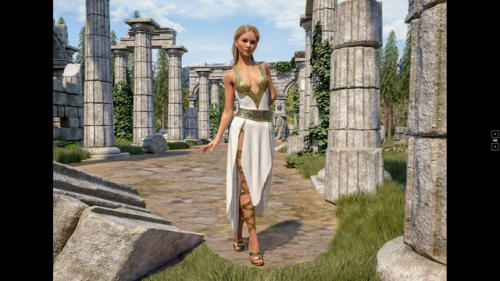
For products that have promo pictures you can now view these full screen in a pop-up window, using
mouse or keyboard.
View single promo: Just click on the picture in the browser window with the left mouse button.
Click anywhere on the full screen viewer window to close it again.
When the viewer is open, you can also browse all the promos for the selected product, using either
the mouse, clicking the buttons on the right side of the viewer, or the left/right or up/down arrow
keys. The viewer can also be closed using either the ENTER key, or the ESC key.
Browsing promos using keyboard alone: Click on a product on the product list to select it
(marked blue), then press CTRL + ENTER, this will open the full screen viewer showing the first
promo for that product. You can then browse the rest of the promos for that product using the
left/right or up/down arrow keys. This method will work even if Product Page Info or Library
Page Info is selected under Offline Setttings, provided that the product does have promo pictures.
Using this method you can browse promos for multiple products, using the keyboard alone. Just hit
ENTER or ESC to close the viewer, move up or down to next product using up/down keys, and then
press CTRL+ENTER to browse the promos for that product.
If a promo (usually the 2nd) looks very blurred, it’s probably an icon. These are often included with
older products. They can be automatically removed using the Clean Up Promo Pictures feature
described on this page.
Known issues: The full screen viewer may sometimes keep reopening multiple times when you
click on it or use the ENTER / ESC keys, to close it. In this case repeat clicking / hitting the key until
it closes. Then click on the product on the product list again, and try again. Haven’t been able to
track down what is causing this yet, hope to have it fixed in next update.
Some products have many very large promo pictures, in which case it sometimes may take a few
seconds before the full screen viewer responds when you click on a picture.
Create SKU List
With this feature you can create a CSV (Comma Separated) list of SKUs for selected products. Such
a list can be used both within the program itself as well as in other contexts.
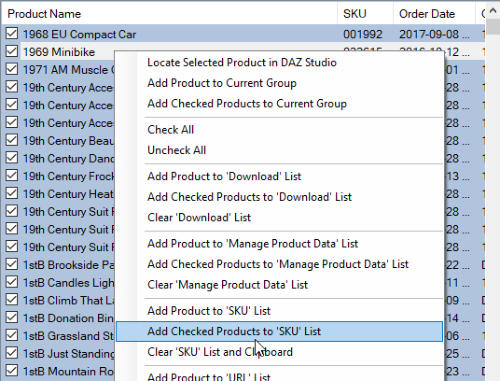
To create an SKU list, just select or checkmark the product(s) you want to include, right click on the
product list to open its Context Menu, and select one of the options:
The list is accumulative so you can keep adding products as many times as you want, e.g. from
different search results. Any duplicate SKUs added will automatically be ignored so only one
instance of each SKU will be included.
If you select SKU in the Search box in the program and pasts the SKU list into the Search field, it
will list all the products on the SKU list.
Restore Promo Pictures tutorial
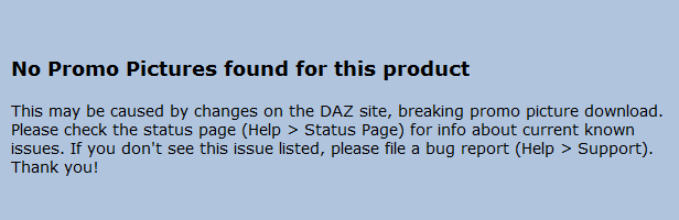
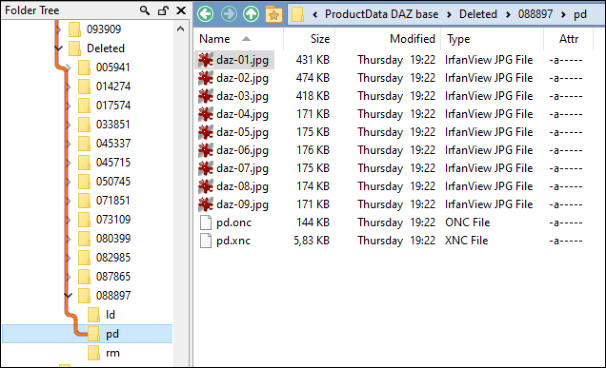
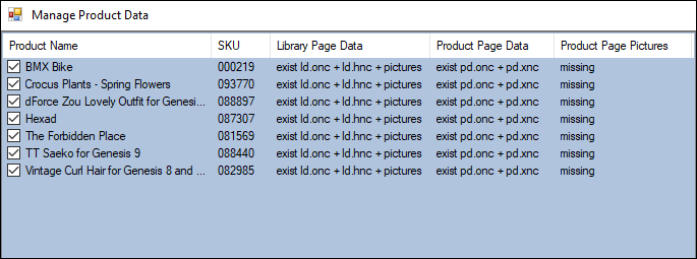
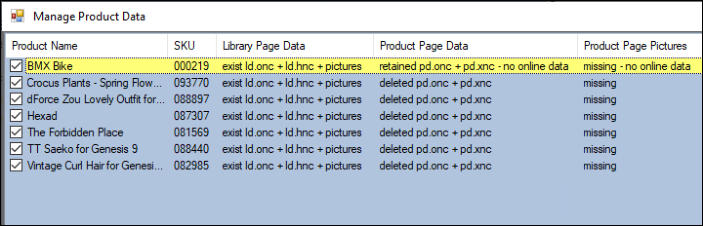
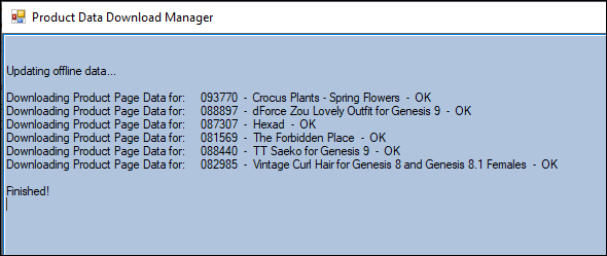
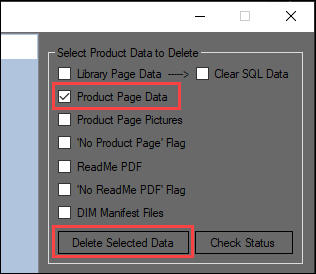
Recently Promo Picture download broke because of changes on the DAZ site, affecting version 1.023 and earlier. After download of product page data you would just see a blank page instead of the promo pictures. This has now been fixed in version 1.025, and the previously blank page is also a bit more informative now: If you have downloaded product page data and experience the missing promo picture issue, there are two ways to restore the pictures for the products that are missing them, provided that they still have an active product page in the DAZ store (which they most likely have, especially with newer products). 1. (single products): Right click on the product on the main product list and select Delete Product Folder from the Context menu. This will move the selected product’s data folder to the Deleted folder as a backup, so it can be restored again by copying it back to the Product Data folder if needed. Then add the product(s) with deleted Product Folders to the Download list via the Context menu, open the Download Manager (Tools > Download Product Data), and re-download the data. After the product list has updated you should now have all the deleted data back again including the missing Promo pictures. If some products are still missing their promos, but do have the Library Page data, the product page is no longer active. In this case, delete the Product Folder again, and move the backup in the Deleted folder back to the Product Data folder. Even if the promos are missing, the backup will still include the Product Page Info from the initial download of the data. You can replace any missing promos with your own renders of the product. Just put them in the “pd” folder inside the Product Folder, using the default promo picture file names as shown below (only .jpg and .png formats are supported). 2. (multiple products): Check the checkboxes for all the products you want to update, then right click and select Add Checked Products to ‘Download’ List as well as Add Checked Products to ‘Manage Product Data’ List from the Context menu, to add the products to both lists. Then open the Product Data Manager (Tools > Manage Product Data) where you should see all the selected products listed, and click the Check Status button. You should now see something like this - all products have Product Page Data but are missing Product Page Pictures: Check the Product Page Data box, and then click the Delete Selected Data button: When finished, you will see the new product data status: In the example here, Product Page Data for all products except one have now been deleted. This means these products still have active product pages. For the one marked yellow however they have been retained, because the product page is inactive. To prevent unrecoverable data from being deleted, the program goes online and checks the product page status for each product, and only deletes data for those which have an active product page. Now close the Product Data Manager, open the Product Data Download Manager, to re-download the deleted data. The missing Promo Pictures should now have been restored.
URL List Manager
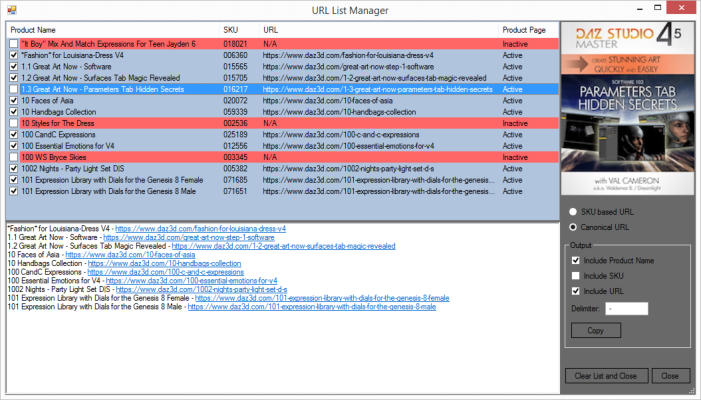
This feature, which hasn’t been documented before, has been updated and improved. It can create a
list of product URLs from selected products you own which can be used for different purposes.
E.g., if someone asks for product suggestions in the DAZ forum, you can browse through your
products and maybe find some that are appropriate, and then very easily create an URL list for these,
which you can paste into a forum post.
URL List Viewer
To add a product to the list, select it on the product list on the main window, then right click to open
the Context Menu and select Add to URL List. Or add multiple products by checking their
checkboxes and then select Add Checked Products to URL List. The list is accumulative so you
can keep adding products in whichever way. Any duplicate entries will automatically be ignored so
only one instance of each URL will be included.
When you have added the products you want, select URL List Manager from the Tools menu. By
default it will go online after opening and check every product on the list to verify that it has an
active product page. If there are many products on the list this may take a little while.
If you want, you can bypass the online check by pressing Ctrl while opening the manager from the
menu, it will still list the products then but not show their Product Page status. The list may be
useful in some cases anyway, depending on the context. If the DAZ site should be down when
opening the manager, it will also open up in this mode with a “DAZ site down” message. You can
check at any time if the DAZ site should be up again by using the Reload List option on the Context
Menu.
If there are products on the list whose product pages are no longer active, these will be marked red
and show “Inactive” in the Product Page column. Depending on the context (e.g. posting the list in a
forum) you may want to remove dead links to inactive product pages. This is done by selecting
Remove all ‘Inactive’ from the Context Menu. Likewise you can remove any product from the list
by selecting it and then select Remove from the Context Menu.
Note that removing products from the list will only remove them from the visible list, the actual list
will not be modified, so you can restore the visible list to match the actual list anytime by selecting
Reload from the Context Menu.
Output Editor
The Output Editor is updated in real time whenever you change an option or edit the URL list on top,
so it will always show exactly what you get when you click Copy. Only checkmarked URLs will be
listed in the Output Editor, so you can add and remove URLs by checking/unchecking the checkboxes.
Each product page has two URL formats by which it can be accessed: SKU Based and Canonical.
E.g.:
https://www.daz3d.com/catalog/product/view/id/059029
https://www.daz3d.com/kala-8-pro-bundle
The SKU based format is generally the most reliable, as product SKUs very rarely change, while
product names occasionally do. The Canonical format however includes the product name which is
useful if you only want to include the URL.
The SKU in the SKU Based URLs can have leading zeroes as above, this is used in the program for
technical purposes and the URL works fine anyway.
The Delimiter is a character text string of one or several characters used to separate Product Name,
SKU and URL. Default is “ - “ (space hyphen space) but you can use whatever you want by editing
the field.
Block Videos on Product and Library Data Pages
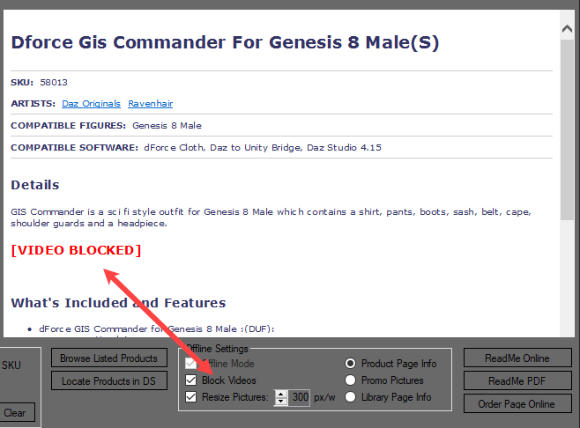
Videos on Product and Library Data pages can slow down data page browsing, so they are now
by default blocked. If you want to unblock them, just uncheck the Block Videos checkbox
under Offline Settings:
When blocked, each video on the page will be replaced by the [VIDEO BLOCKED] text.
There currently may be problems with playing the videos on some systems. If they are playable,
some of the player functions like clicking on the “More videos” pop up and the “Watch on
Youtube” button may lock up the program temporarily. If the videos will not play, you may not
have set “Browser Compatibility”, which can be done on the Settings tab.
Videos not using iFrame links will currently not be blocked.
Program Status Page
The web site now has a Program Status Page where relevant info for the different programs will
be posted. If you suddenly experience issues with one of the Product Managers for example, it
may be caused by changes on the DAZ or the Renderosity site. If the problem is already known,
it will be stated on the Status Page.
There is a direct link to the page under Help > Status Page in the program.