VERSION 1.010 UPDATE
The program has now been fully updated to work with the new DAZ Store. Because the data
structures in the store have changed it’s been necessary to change the program’s way of handling
the data accordingly. This has made retrieving and processing product data a bit slower, but in
return it has made it possible to include new data like a product’s license status, and whether the
product is a bundle (which you can’t always determine from the product name).
Download of Data
“Download History” now only gets the Product Name and the Product ID (SKU) for the products on
the main product list. The rest of the data in the columns (Order Date / Number etc.) are being
collected from the Product Library Pages which means that you must download the Library Pages to
complete the data.
You can download the Library Pages first and get the Product Page data later if you want, but it’s
recommended to get the Product Pages as quickly as possible as products and thereby their product
pages are being removed from the store regularly, usually permanently. Library Pages for all your
products will always be available in your account in the DAZ store, for browsing and for download
with the program, even if the product and it’s product page have been removed from the store.
As a new feature you can now select which products you want to download Library Page/Product
Page data for first, instead of having to download them all from A-Z, if you want to get to those
whose names start with “F” or “Z”, or whatever:
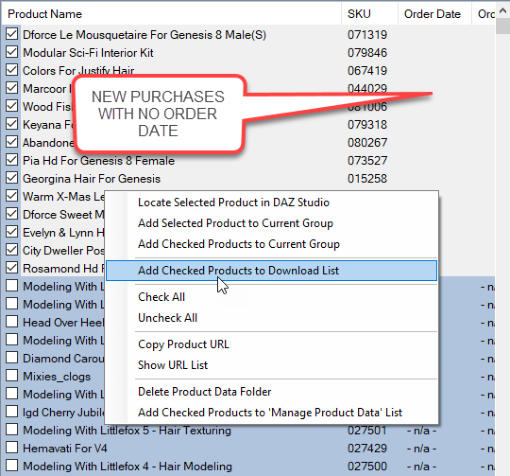
1. Check the checkboxes for the products you want to download data for, then right click and select
“Add Checked Products to Download List” from the Context Menu.
2. Open the Download Manager (Tools > Download Product Data).
3. In the group box “Product Data to Download” select “Download List”. It will now only download
data for the products on the Download List.
Tip: if you want to download product data for your latest purchases you can sort by “Order Date”
and (provided that data for all other products already have been downloaded and all products are
listed (as with “Load Saved History”)) your new products will now show on top of the list for easy
selection since they don’t have any Order Date yet. You can also find any other products which you
haven’t downloaded Library Page data for yet, this way.
Some products may have “- n/a -” in the Order Date / Order Number fields for different reasons,
these include all products imported from your RDNA account when DAZ took over RDNA. RDNA
products purchased in the DAZ store however will normally have an Order Date and an Order
Number. You can find all “- n/a -” products either by searching on Order Date and entering “- n/a -”
in the search field, or by sorting by Order Date or Order Number where they will show either on top
or bottom of the list.
If you have downloaded Library Page data the main product list will update automatically to include
the new data (Order Date / Number and other info), after closing the “Download Product Data”
window. If you only have downloaded Product Page data or ReadMe PDFs it will not update as this is
not necessary.
Backup
A Database Backup option has been added, it will backup the SQL data and other important data
automatically each time you Download History, so you can recover these data in case of file
system corruption or disk crash. Note that currently it does not back up the content of the
Product Data folder with the product pages, library pages and promo pictures, an option for
including these will be added later.
Select Tools > Backup to configure it. Just select a folder to backup to, to enable automatic
backup.
It’s highly recommended to back up to another drive than the one where the program is installed,
otherwise you will also lose the backup if the drive crashes.