Running Product Manager for DAZ3D over Network
The Product Manager is using a clone of the Internet Explorer browser on your system for displaying pictures and data, and that is unfortunately using a lot of memory (possibly a memory leak) and only Microsoft can fix that which they probably never will. So running the program on another PC can be useful if the PC where DAZ Studio is installed has a limited amount of RAM. It may also be handy to have the Product Manager on another PC with its own monitor, if you don't have a multi monitor PC.
However, one of the Program Manager's most useful features, "Locate Product in DS", has until now only been working if the program was installed on the same PC as DAZ Studio. From version 1.027 however, this feature is now fully functional also over network, and this tutorial explains how to set things up for that.
Setup
In the Product Manager installer zip you will now find a new folder "lpn" containing two files needed to make this work:
- LocateProductNetworkDs.exe:
A copy of this file must be put in a folder somewhere on the network PC where DAZ Studio is installed. E.g. you can put it in a subfolder named "Product Manager for DAZ3D" inside the "Scripts" folder in your DAZ Studio Content Library, as in the example below. Don't use "Program Files" or "Program Files (x86)" or other system folders (except "ProgramData" (usually hidden)), as this may cause issues.

The locate product.dsa file in the folder here is not included but is a script which is generated dynamically by the DAZ Program Manager and copied to the folder over the network, whenever the "Locate Product in DS" feature is being used.
-
locate product remote.ini:
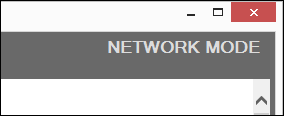
A copy of this file must be put in the Product Manager's "settings" folder, this will put the "Locate Product in DS" feature in Network Mode. When Network Mode is enabled you will see this in the top right corner of the main program window:
The first line in the "locate product remote.ini" file represents the path to the "LocateProductNetworkDs.exe" on the DAZ Studio network PC and it must therefore be modified to match that path. The .ini file contains instructions for how to do that.
Using the program
In order for the whole thing to work, the "LocateProductNetworkDs" program on the DAZ Studio PC must first be running. If you use it a lot, you can put a shortcut to the file in the Windows "Start-up" folder so it is started automatically when Windows is starting:
C:\Users\[Username]\AppData\Roaming\Microsoft\Windows\Start Menu\Programs\Start-up
If you want it to start up minimized, right click on its shortcut, select "Properties", on the Properties Window select "Run: Minimized" and click OK. It will place an icon in the Tray, click that icon to show the program Window when it is hidden:
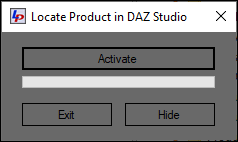
Activate: Running the program will just show the program window, it remains inactive until it is activated (progressbar running). When activated it will check the status of the .dsa script every 2 seconds and run it if it is being modified, i.e. whenever you use the Locate Product feature in the Program Manager on the remote PC.
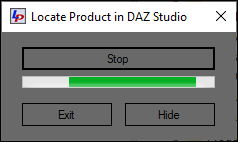
Stop: This will deactivate the monitoring of the .dsa script. Use it to save resources and prevent unnecessary disk activity when you're not using DAZ Studio or the "Locate Product in DS" feature.
Hide: This will hide the program window. Clicking the "X" on the upper right corner of the program window or using Alt+Ctrl will do the same. When monitoring is activated, the progress bar will only run when the program window is visible, not when it is hidden, to save resources.
Exit: This will exit the program and remove its Tray icon.
Networking in general
You can have the Product Data folder and other folders that the Program Manager is using or accessing either on the DAZ Studio PC or the PC the Program Manager is installed on, as you like. As for DIM's ManifestFiles folder however, you should access that where it is located, which usually is on the DAZ Studio PC.
Appendix
Mouse Without Borders (MWB) is a free utility which makes it possible to use a single keyboard and mouse to control several Windows PCs with individual monitors. It can be very useful in a case like this, and is easy to install and set up. Can be downloaded here:
https://www.microsoft.com/en-us/download/details.aspx?id=35460
Setup and documentation:
https://aka.ms/mm